Waves SuperRack Snapshots: Switch Drum Presets in One Click
If you rotate drummers and run Waves plug-ins on every drum mic, switching everything over each week is a pile of clicks. For me it was 20–30 clicks in SuperRack every time the drummer changed. Now it’s one click: I save each drummer’s plug-in presets as a SuperRack snapshot and recall the one I need. Here’s exactly how I set it up, plus the one setting you have to change so it never touches your vocals.
My setup
This post contains affiliate links. As an Amazon Associate I earn from qualifying purchases, at no extra cost to you. It helps pay for the tutorials.
I mix on a Behringer Wing (the full size console), with a Mac mini connected over USB running Waves SuperRack Performer. SuperRack does my external plug-in processing for the Wing, so I do lots of vocal processing and lots of drum processing with Waves plug-ins.
If you don’t have SuperRack talking to your Wing yet, start with my SuperRack Performer setup guide for the Wing. The connection is a plain USB A to B cable from the back of the Wing to the computer. The whole console side of my system is in my Wing front-of-house kit.
The problem: two drummers, a plug-in on every drum mic
I have two drummers, Brett and Owen, who play very differently. I’d already saved presets in SuperRack for each of them, but I have a plug-in on every drum microphone, and sometimes more than one plug-in per mic.
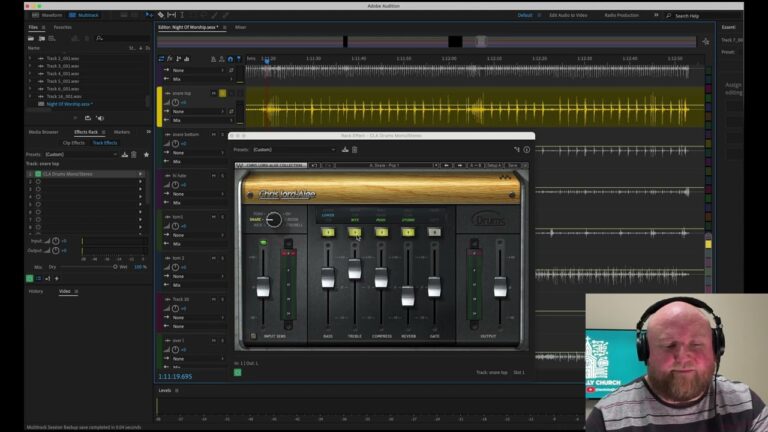
In my rack the vocals come first (vocals 1 through 6), then the drums: a channel for kick, top snare, bottom snare, and two toms. I run CLA Drums across the kit, with a C4 and a Torque in there as well.
The old way, if Brett was drumming, I’d open the CLA Drums on the kick and pick the kick preset for Brett, then the C4 for Brett, then the snare, then the snare bottom, and so on down every drum. That’s how you end up at 20–30 clicks, every week, back and forth.
The fix: one snapshot per drummer
Instead of changing plug-ins one at a time, I set up a snapshot that changes the entire drum set, every plug-in, from Owen to Brett and back. Loading it is the only step.
How to build the snapshots
- Set every drum channel up the way you want it for your first drummer, with the right preset on each plug-in.
- Store a new snapshot and name it after that drummer. Mine is Drums Owen.
- Now change every drum plug-in by hand to your second drummer’s presets.
- Store another new snapshot: Drums Brett.
That’s it. Click Drums Owen and every drum plug-in goes to Owen’s preset. Change the snapshot to Drums Brett and every single channel follows: the toms, snare bottom, snare top and kick, including the C4 and the Torque.
The step everyone misses: narrow the snapshot’s scope
Here’s the catch. By default, when you store a snapshot like Drums Owen, SuperRack saves all settings for all plug-ins. That means recalling your drum snapshot would also put your vocal plug-ins back to whatever they were when you stored it. You only want it to affect the drums.
- Go to Show > Snapshots. You’ll see every snapshot you have.
- Click your drum snapshot.
- Change the scope from everything to Rack.
- Pick only the plug-in slots you use on the drums. I use plug-ins 1 and 2 on my drums, so it’s just plug-ins 1 and 2.
- Pick only your drum channels. Mine are rack channels 7 through 11.
- Do the same for the other drummer’s snapshot.
Now the snapshot only touches the drum channels and those plug-in slots. Your vocal channels and everything else are left alone. You can change any other preset, recall the drum snapshot, and it only changes the drum presets.
This matters even more if you already use snapshots for other things. I fire a SuperRack snapshot for every song so Waves Auto-Tune follows the key, and I have drum snapshots as well. Narrowing the scope is what lets those live side by side. That song setup is in how I automate Auto-Tune key changes with the Wing and SuperRack.
Use it for any musician you rotate
This isn’t just for drums. It works for vocalists, electric guitar players, piano players: anywhere you rotate musicians, have different plug-in presets for each, and spend a lot of clicks getting there.
FAQ
Will recalling a drum snapshot change my vocal plug-ins?
Not if you narrow its scope. Out of the box a SuperRack snapshot saves all settings for all plug-ins. Set the scope to Rack, only the plug-in slots you use on drums, and only your drum channels, and it leaves the vocals alone.
Do I need a separate snapshot for each drummer?
Yes, one per musician. Set the plug-ins up for one drummer and store a snapshot, then change them to the other drummer’s presets and store a second one.
Can I recall these snapshots from the Wing instead of the computer?
SuperRack can respond to MIDI from the Wing. In my MIDI video I show how you can set up user keys, direct snapshots, hot plug-ins and direct plug-in controls. Start with linking the Wing and SuperRack over MIDI.
Does running plug-ins over USB add latency?
I tested exactly that: USB against Dante, and SuperRack against Ableton. The results are in my latency A/B test for external processing on the Wing.
Related tutorials
- SuperRack Performer setup with the Behringer Wing: start here if SuperRack isn’t connected yet.
- MIDI control between the Wing and SuperRack: fire SuperRack from the console.
- Automate Auto-Tune key changes: song snapshots that work alongside your drum snapshots.
- USB vs Dante latency for external processing: what the round trip costs you.
Gear I use for this
- Behringer Wing (full size): the console all of this runs on.
- Mac mini: runs SuperRack Performer behind my console.
- USB A to B cable: connects the Wing to the computer.
Everything else I recommend is on my product recommendations page.
Got a question I didn’t cover? Ask me in the chat here on the site, or leave a comment below and I’ll do my best to help.