Behringer Wing and Dante: A Practical Guide for Churches
If you’ve got a Behringer Wing and you keep hearing about Dante, this is for you. I run Dante on the Wing every week for multitrack recording, Playback tracks, and sending audio around the building, and I’ve made a pile of videos on each piece. This post pulls them together in the order you’ll actually need them, including the firmware headaches that caught me.
What the Wing Dante card gives you
This post contains affiliate links. As an Amazon Associate I earn from qualifying purchases, at no extra cost to you. It helps pay for the tutorials.
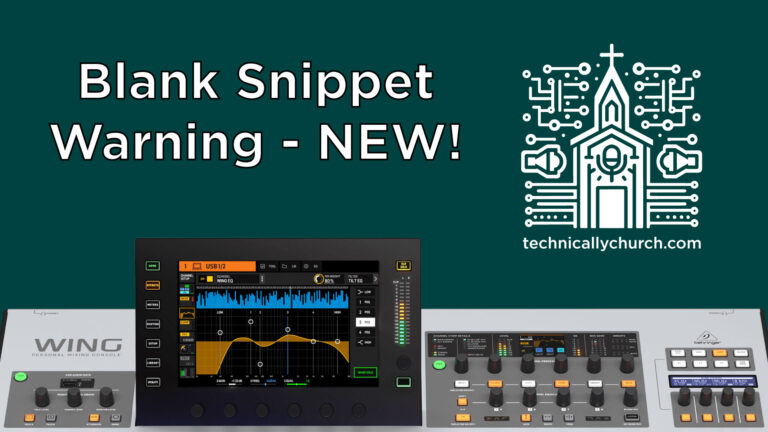
The Wing ships with an SD card recorder in its card slot. You can pull that out and put a Wing Dante card in its place, which gives you 64 channels in and out of Dante.
In my setup the Wing is connected to a network switch, and a Mac is on that same network. I use that primarily to multitrack record, and I also run MultiTracks.com Playback over Dante, so my tracks, click and guide all come into the console over the network.
One thing worth knowing before you shop: there’s an external expansion card and an internal card for the Wing, and they take different firmware (more on that below). If you’re on an X32, there’s an X32 Dante card too.
Dante Controller and getting your Mac on Dante
Dante Controller basics
Dante Controller is the free software from Audinate (download it at getdante.com) that does all your routing on the Dante network. Every device shows up as a transmitter, a receiver, or both, and here’s the part that trips people up: audio only goes where you tell it to go. By default nothing is patched.
Patching is a grid. You find the transmitter channel, find the receiver channel, and click the box where they cross until you get a green checkmark. Most of the time I just do a one-to-one patch: MacBook channel 1 to Wing channel 1, channel 2 to channel 2, and so on. You can do more advanced routing too. For example, I send Playback channel 16, my SMPTE timecode, to a separate Dante adapter plugged into my GrandMA2 lighting console.
Full walkthrough: Mastering Dante Controller with Behringer Wing.
Dante Virtual Soundcard
Dante Virtual Soundcard is what turns your computer into a Dante device. It’s purchased software from Audinate, and you’ll enter a license the first time. The settings are simple: pick your network interface (make sure it’s the one on your Dante network), pick your latency, pick how many channels you want (with the Wing card you get 64, so I enable all 64), and click Start. Your computer then shows up in Dante Controller and you can patch it. I explain it in this beginner’s video on Dante Virtual Soundcard.
Use the Belkin adapter
We use all Apple products, and I had all kinds of trouble with third-party Ethernet adapters on our Dante network. Since switching to the Belkin USB-C to Gigabit Ethernet adapter, which Apple endorses and sells on its website, it’s worked flawlessly. When you’re dealing with Apple products, I recommend sticking with Apple accessories, and Apple doesn’t sell its own USB-C Ethernet adapter. More in my post on the Belkin adapter.
Multitrack recording over Dante
Once the Mac is on the network, recording every channel is a three-step job:
- On the Wing: go to Routing, then Outputs, and switch to Dante Out. Patch whatever you want onto the 64 Dante outputs. I’m using 45 of them.
- In Dante Controller: the Wing is the transmitter and the computer is the receiver. One-to-one patch, green checkmarks.
- In Adobe Audition: under audio hardware, set inputs and outputs to Dante Virtual Soundcard. Start a new multitrack session, set each track’s input to mono Dante 1, Dante 2, and so on, arm every track (the R lights up red), and hit record.
Each track records individually, so you can edit it later or play it back into the Wing. The step-by-step is in 64-channel recording in Adobe Audition. If you’d rather not use Dante for this, the Wing can also send 48 channels over USB, which is how I set up virtual soundcheck with Adobe Audition.
Want the full recording rig? See my multitrack recording gear kit.
MultiTracks Playback over Dante
Playback supports Dante. In Playback’s settings, set the audio device to Dante Virtual Soundcard, then go to Buses and patch each bus to a Dante channel. On the Wing, go to Routing, then Sources, switch to Dante In, and bring those channels onto faders. I’ve got Track Drums, Percussion, Loops, Keys, Electrics, Acoustics, Strings, Pads, FX and Aux on their own channels, so I can turn the electric guitar tracks on or off depending on who’s playing that weekend.
Tracks into buses
Playback gives you 16 buses for audio (32 if you run stereo), plus a 17th for SMPTE timecode, but a song can have more tracks than that. Same God by Elevation has 19. So Playback pre-patches tracks into buses, and you can change it. I like electric guitar 1, where most of the leads live, on its own bus, separate from the other electric tracks. That’s in strategic track patching with Dante.
Buses out to Dante
Then click each bus and choose its Dante channel. You can double buses up on one channel if you’re short on faders (I’ve put click and guide both on 14), but timecode can’t share. It forces its own channel. See strategic bus routing with Dante.
Connecting two Wings over Dante
We use two Wings together for a separate live stream mix in another room, and the same idea works with a second Wing on stage for in-ears and wedges.
- Put a Dante card in both Wings and get both on the network.
- In Dante Controller, set the primary Wing as transmitter and the secondary as receiver, and patch the channels you need.
- On the primary Wing, go to Routing, Outputs, Dante Out, unlock it, and assign your sources.
- On the secondary Wing, patch each channel’s source from Dante.
Everything on the second Wing is independent (faders, EQ, effects, mutes, names) except gain. Gain stays with the console the signal comes into, so if somebody rides the gain on the primary Wing mid-service, it changes the second mix too. Do a proper soundcheck and leave the gains alone. It works in both directions, and any other Dante device (an AVIO adapter or a computer running Virtual Soundcard) can grab those signals too. Watch connecting two Wings with Dante.
If you’re building out front of house, my Wing FOH system kit lists what I use.
Firmware gotchas (read this before you update)
Updating the Dante card
The Dante card’s firmware is separate from the Wing’s. You update it through Dante Updater, which launches from a button in Dante Controller. The Wing has to show up in Dante Controller first or you can’t update it. If an update is available, select the Wing, click Update Selected Devices, keep everything powered on, and it walks you through it. Here’s the Dante card firmware update walkthrough.
Wing 3.0: the card disappeared
Going from Wing firmware 2.0 to 3.0.4, everything worked except Dante. The Wing wouldn’t show up in Dante Controller, so I couldn’t update the card. What fixed it: I downgraded the Wing to 2.0, updated the Dante card (from 4.2.4.8 to 4.2.7.7), then upgraded the Wing back to 3.0.4. It looks like an out-of-date Dante card won’t work with Wing firmware 3.0. Full story in how I fixed my Dante card after the 3.0 upgrade.
Wing 3.0.6: Dante out stopped working
After 3.0.6, Dante Updater told me the card was up to date, and inputs worked, so I thought I was fine. Dante out didn’t work. The fix was a manual firmware install:
- On behringer.com, search for Wing Dante (it’s not in the downloads section) and grab the firmware from the product page’s software section.
- Pick the right file: external or internal card, Brooklyn 2 or Brooklyn 3 chipset. The manual route doesn’t check, so you could mess this up.
- Under advanced settings, turn on allow imported firmware and allow override of device matching.
- Import the .dnt file, choose upgrade on the Wing, accept the warning, update, then reboot the Dante card.
Written version: fixing Dante output after Wing firmware 3.0.6.
Gear I use for this
- Behringer Wing Dante card: 64 channels in and out of Dante on the Wing.
- X32 Dante card: the same idea if you’re running an X32.
- Belkin USB-C to Gigabit Ethernet adapter: the only adapter that’s been reliable for me getting Macs on Dante.
- Dante AVIO output adapter and AVIO input adapter: analog in and out of the network. I use them for timecode into my lighting console and audio into the live stream.
Everything else I recommend is on my product recommendations page.
Got a Dante question I didn’t cover? Ask me in the chat here on the site, or leave a comment below and I’ll do my best to help.