In-Ear Monitors for Your Church Band on the Behringer Wing
If you run sound on a Behringer Wing and your band keeps waving at you for “more me,” this one’s for you. I’ll walk through the two ways I let musicians run their own in-ear mixes, P16 personal mixers over Ultranet and Wing buses controlled from an iPad with the Wing-Q app, plus the routing details that trip people up. Everything I use for this is on my in-ear monitoring gear kit page if you want the full list.
Two routes to musicians mixing themselves
This post contains affiliate links. As an Amazon Associate I earn from qualifying purchases, at no extra cost to you. It helps pay for the tutorials.
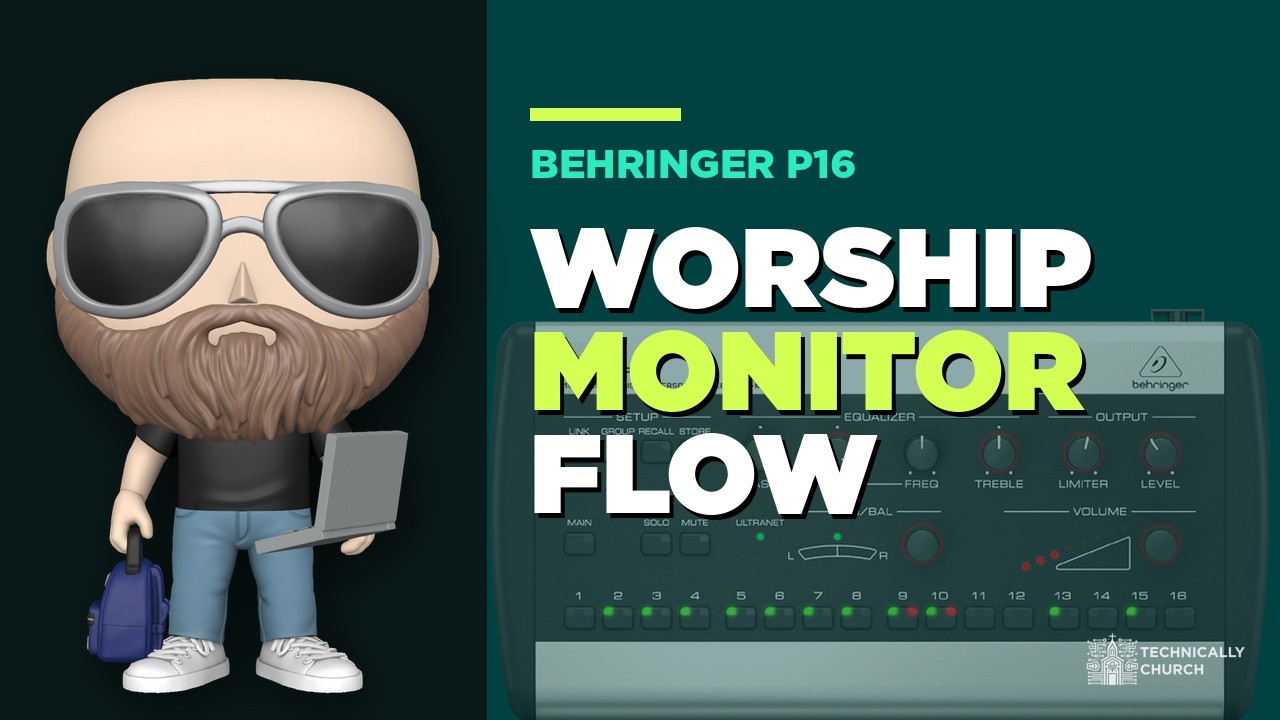
Route one: P16 personal mixers. The Behringer P16-M gives a band member 16 channels of personal mixing and replaces a stage wedge. It works with the Wing with nothing else as long as you have a stage box with Ultranet, like the Behringer S32 or the Midas DL32. The Wing’s AES50 port goes into the snake, and the snake’s Ultranet port feeds the P16s. For one unit you can power it locally, but once you have several, put the P16-D distribution hub in the middle. It connects up to 8 without any power or daisy chaining, because the hub has PoE.
Route two: Wing buses and Wing-Q. If you don’t have a dedicated monitor console (most of us don’t), you can mix in-ears on Wing buses and hand the musician an iPad running Wing-Q. Wing-Q only gives them buses, so they can’t mess up your front of house mix. I’ll cover that further down.
In my own church we use both: our vocalists are on wireless in-ear packs mixed from buses on the Wing, and the backline instruments use P16s.
Patching the P16s on the Wing
This is the part that confuses people coming from an X32, where the P16 routing is labeled. On the Wing it isn’t. You do it in Routing > Outputs, on the AES50 port your stage box is plugged into.
- Outputs 1-16 on AES50-A are the 16 physical outputs on the snake.
- Outputs 33 through 48 are the P16 channels. Output 33 is P16 channel 1, output 34 is channel 2, and output 48 is channel 16.
- Release the lock on the routing screen, select the output, then pick the source group and channel you want on that P16 slot.
I show this step by step in my Wing + S32 + P16 setup video (and the written version), and there’s a shorter version in this P16 routing walkthrough.
Sending buses to P16s (and pre vs post fader)
Sixteen channels runs out fast. A drum kit alone can be eight mics. The fix is to group things on a Wing bus and send that bus to one P16 slot. The Wing gives you 16 buses. I set up a drum bus, turned on all the drum channels in sends on fader, and let the drummer’s preferences set the balance. Then in Routing > Outputs I pointed the P16 slot (output 45 for P16 channel 13) at that bus as the source.
Make the drum sends pre-fader so what you do in the house doesn’t mess up that mix. On the Wing, each bus can be set to tap point (pre), post or subgroup on its settings tab, and every channel’s send to that bus defaults to “linked to bus.” Switch a channel to “individual” if one source needs to behave differently. Here is my pre vs post fader video if you want to see those screens.
A real worship band layout
Here’s how we lay out the P16s at The River Church. We regularly have six vocalists, one to two acoustics, one to two electrics, keys, pads, bass, drums, and multitrack playback with loops, click and a guide. That’s a lot for 16 channels, so we group:
- Lead vocal: a bus that always holds whoever is leading that song, so the band never has to change anything song to song.
- Background vocals: a bus with every vocalist except the leader.
- Vocals 1-4 direct (we don’t usually have vocals 5 and 6 lead anything).
- Acoustic, two electrics, keys, pads and bass as direct channels.
- Drum bus: all eight drum mics, pre-fader, mixed the way the drummer wants.
- Tracks bus: this one is post-fader on purpose. If I mute a piano track at front of house because we have a real piano player, it disappears from their P16 too.
- Guide + talkback: the guide bus also carries my talkback mic and our pastors’ mics.
- Click on its own, so they can balance click against guide.
Watch me walk through it in the real-world layout video or read the blog post.
Large bands: two snakes, two sets of P16 mixes
If you have a really big band, say eight vocalists, four on wireless in-ears and four on P16s, plus a full band on P16s, you can run two different P16 mixes. You need two stage snakes hooked up independently: dedicated Ethernet runs from AES50-A to the first snake and AES50-B to the second.
The vocalists’ P16s come off the first snake, so outputs 33-48 on A feed them: all eight vocalists plus the instruments they need, click and guide. The band’s P16s come off the second snake, so outputs 33-48 on B feed them: the first four vocalists and every instrument, tracks, click and guide. Details are in my large band routing video.
Better-sounding in-ears: tap point, separate EQ and reverb
Tap point. On a channel, hit the settings wrench and you’ll see a red dot. Everything above it in the processing chain goes to the ears. If a vocalist hates the heavy compression you need in the house, drag the tap point above the compressor. You can even reorder the blocks, though remember the order of processing changes the sound. See my processing chain video.
Independent in-ear EQ. I’m not going to change the front of house EQ for one vocalist’s ears. Instead, go to Bus Masters, select their in-ear bus, hit sends on fader, then on the channel use the tap EQ section. That EQ only goes to their ears. Here it is on video.
Reverb so vocals aren’t dry. I run vocal reverb as an insert on a bus, and all the vocal mics send to it. In sends on fader you can’t reach that bus, so here’s the trick: select the reverb bus (bus 1 for me), go to its sends, and send it to the in-ear bus (bus 6 for me). Turn it on and up. That level is how much reverb they get. Full steps are in the reverb-to-in-ears video and this post.
Letting musicians mix from an iPad with Wing-Q
There are two free Behringer apps for the Wing. Wing Copilot controls the whole board. Wing-Q is meant for controlling buses, which is what you want to hand to musicians so they don’t have to bother you at front of house. Don’t give them Copilot; it’s too easy for them to lose track of where they are and change your house mix.
- Plug an Ethernet cable into the Wing’s control port and into your network.
- On the Wing, go to Setup > Remote. Leave IP mode on DHCP unless you know your network well enough to set a static address.
- Put the iPad on the same network, install Wing-Q from the App Store and connect.
- Pick their bus from the button on the far right. I label mine like “IEM5” so it’s obvious.
When they move a fader, it moves their ears, not front of house. The full walkthrough is in my Wing-Q video and the Wing-Q post. If you want the full-control app for yourself, I cover Wing Copilot on the iPad here.
Gear I use for this
- Behringer P16-M: 16-channel personal mixer for each band member, replacing a wedge.
- Behringer P16-D hub: connects up to 8 P16s with PoE, no local power or daisy chaining.
- Behringer S32: the stage box I use most; its Ultranet port feeds the P16s.
- Midas DL32: essentially the same as the S32 with better preamps.
- iPad: runs Wing-Q so musicians can mix their own bus.
The whole setup is on the in-ear monitoring kit page, and the rest of what I use is on my product recommendations page.
Got a question about your own in-ear setup? Ask me in the chat here on the site, or leave a comment below.