Common Behringer Wing Problems (and How I Fix Them)
This post contains affiliate links. As an Amazon Associate I earn from qualifying purchases, at no extra cost to you. It helps pay for the tutorials.
If you run a Behringer Wing at church, sooner or later something is going to act weird. A firmware update kills Dante, a channel shows up with a name you never gave it, or Sunday’s mix is gone on Monday. These are the Behringer Wing problems I’ve actually hit on our consoles, and how I got each one fixed.
Dante stopped working after a firmware update
This is the big one, and it’s bitten me twice. If you run a Wing Dante card, test Dante after every Wing firmware update, inputs and outputs.
After 3.0: the Wing vanished from Dante Controller
I went from firmware 2.0 straight to 3.0.4. The whole board worked great except Dante. The Wing just didn’t show up in Dante Controller at all, and that’s a catch-22, because the Dante card’s firmware gets updated from Dante Controller on a computer. If the Wing isn’t on the network, you can’t update the card.
Here’s what got me out of it:
- Downgrade the Wing back to 2.0, so the card shows up in Dante Controller again.
- Update the Dante card with the Dante Updater (the button next to the plus in Dante Controller). My card went from 4.2.4.8 to 4.2.7.7.
- Upgrade the Wing back to 3.0.4. Dante came back and everything worked.
It took a couple of restarts of the Wing and Dante Controller along the way, so don’t panic if it doesn’t come up on the first try. The short version: an out-of-date Dante card firmware didn’t work with Wing firmware 3.0. Full story in How I Fixed My Dante Card After Firmware 3.0 and the write-up.
If you just need the normal card update, I walk through the Dante Updater step by step in this video (blog post here).
After 3.0.6: Dante in worked, Dante out didn’t
Firmware 3.0.6 requires a Dante update. The Dante Updater told me my card was up to date, inputs worked, and I thought I was done. Dante out wasn’t working at all.
The fix is a manual install. Search behringer.com for Wing Dante (it’s not in the normal downloads section) and grab the right .dnt file. There are separate files for the internal and external cards, and for Brooklyn 2 and Brooklyn 3 chipsets. Pick carefully, because a manual install doesn’t check it for you. Then in Dante Controller go to Advanced Settings, turn on allow imported firmware and allow override of device matching, import the file, upgrade, and reboot the Dante card. Mine went from 4.2.7.7 to 4.2.9.4. Every click is in the 3.0.6 Dante fix video and the blog post.
A firmware upgrade goes wrong (how to upgrade safely)
Most Wing upgrades are quick: put the .wingfw file on a thumb drive, go to Setup, hit Update, shut down, power cycle. The part people skip is the backup, and that’s the part that saves you.
- Back up to USB, not just the console. Save a snapshot with Save + Scope, hit All, and save it to the USB drive. I save to USB because I don’t want my only copy on the internal drive if something goes wrong.
- Copy everything off for big jumps. Before going from 2.0 to 3.0 I turned on Wing Data mode in Setup and copied every file, snapshots, snippets and presets, to my Mac in case the internal drive got wiped. I even took pictures of my layout, main EQs and routing.
- Keep the firmware you’re coming from. I kept the 2.0 and 2.1 files handy in case I needed to revert, and I did.
- Read the release notes. Behringer noted that if you jump from 2.0 or 2.1 all the way to 3.0.5, your fader layers will be empty after updating. You have to initialize the layers, then reload your saved file.
- Take the firmware file back off the thumb drive afterward so nobody accidentally runs it.
My full saving and restoring process is in Save and Restore Your Behringer Wing to USB (blog). I keep my backups in three places: the Wing, the USB drive, and Google Drive. For the upgrade itself, see the 3.0.5 upgrade guide (blog) or my live 3.1 upgrade walkthrough (blog).
My mix changed when I wasn’t looking
Settings reverted after power-off
If you just flip the power switch, you may find the board back where you started when it boots: a whole weekend of mixing, gone. Use Setup > Shutdown on the screen first. It saves the console state in memory, so you come back to where you left off. More in the shutdown video and the blog post.
Someone touched the board
Hold the Home button for two seconds and the console locks. Hold it again to unlock. If you hold Home plus another button, like Home and Routing, that combo becomes the “password.” Faders still move while it’s locked, but when you unlock, they go right back to where they were. Watch it in How to Lock the Behringer Wing Console (blog).
Initialize: old channel names, phantom power and EQ resets
On the Wing, the name and attributes like phantom power live at the source level, not the channel. So you pull Electric 2 off your channel strip, plug a violin into that input weeks later, and it still says Electric 2, possibly with phantom power on. The fix is in Routing > Sources: select that input and hit Initialize. It clears the name and the phantom power, and grays it out as unpatched. Only use it if you really want that source wiped. See Resetting a Source the Right Way (blog).
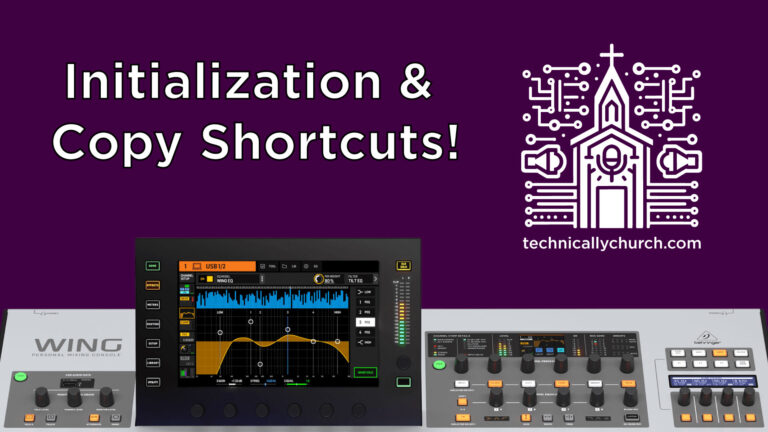
Since 3.0.5, Initialize and Copy also sit right at the top of the screen instead of being buried in a tools menu. From the EQ page, Initialize defaults to just the EQ, so flattening an EQ is a couple of taps. From the home screen it defaults to the whole channel. Copy works the same way, so you can copy one EQ onto channels 2, 3 and 4. That’s in this quick tip (blog).
Latency with external processing
I run Waves plugins on a Mac Mini and send audio from the Wing out and back. In my testing USB was the better way to go: a little over 8 milliseconds total over USB versus about 44 over Dante. Buffer size matters too. Fewer samples means less latency but more processing power, so find a balance that works for your computer. That’s in this video.
Don’t just trust the number your software shows. You can measure it on the Wing: put a pink noise oscillator on one channel, the USB return on a second channel, invert the raw one and add delay until they cancel out. Mine came out to 479 samples, 9.98 milliseconds, while Ableton said about 8. Walkthrough in the latency test video (blog).
Things that look broken but aren’t
- A snippet recorded nothing. A snippet only records what’s in its record focus. If the focus is blank, nothing gets recorded. Firmware 3.0.5 now warns you. See the blank snippet warning (blog).
- No spectrum analyzer on the EQ. It may be set too low, set to off, or there’s no audio on the channel. Open the EQ’s settings and change size/mode. I like overlay. See the spectrum analyzer video (blog).
Gear I use for this
- Behringer Wing (full size): the console all of these fixes are on.
- Behringer Wing Dante card: the expansion card from the Dante sections above. Test it after every firmware update.
- SanDisk 16GB Ultra Fit: the low-profile thumb drive I use for firmware files and backups. It works in the Wing and doesn’t stick out.
Want the rest of my front-of-house setup? It’s all on my Wing FOH system kit page, and everything else I use is on my product recommendations page.
Hit a Wing problem I didn’t cover? Ask me in the chat here on the site or leave a comment, and I’ll help if I can.