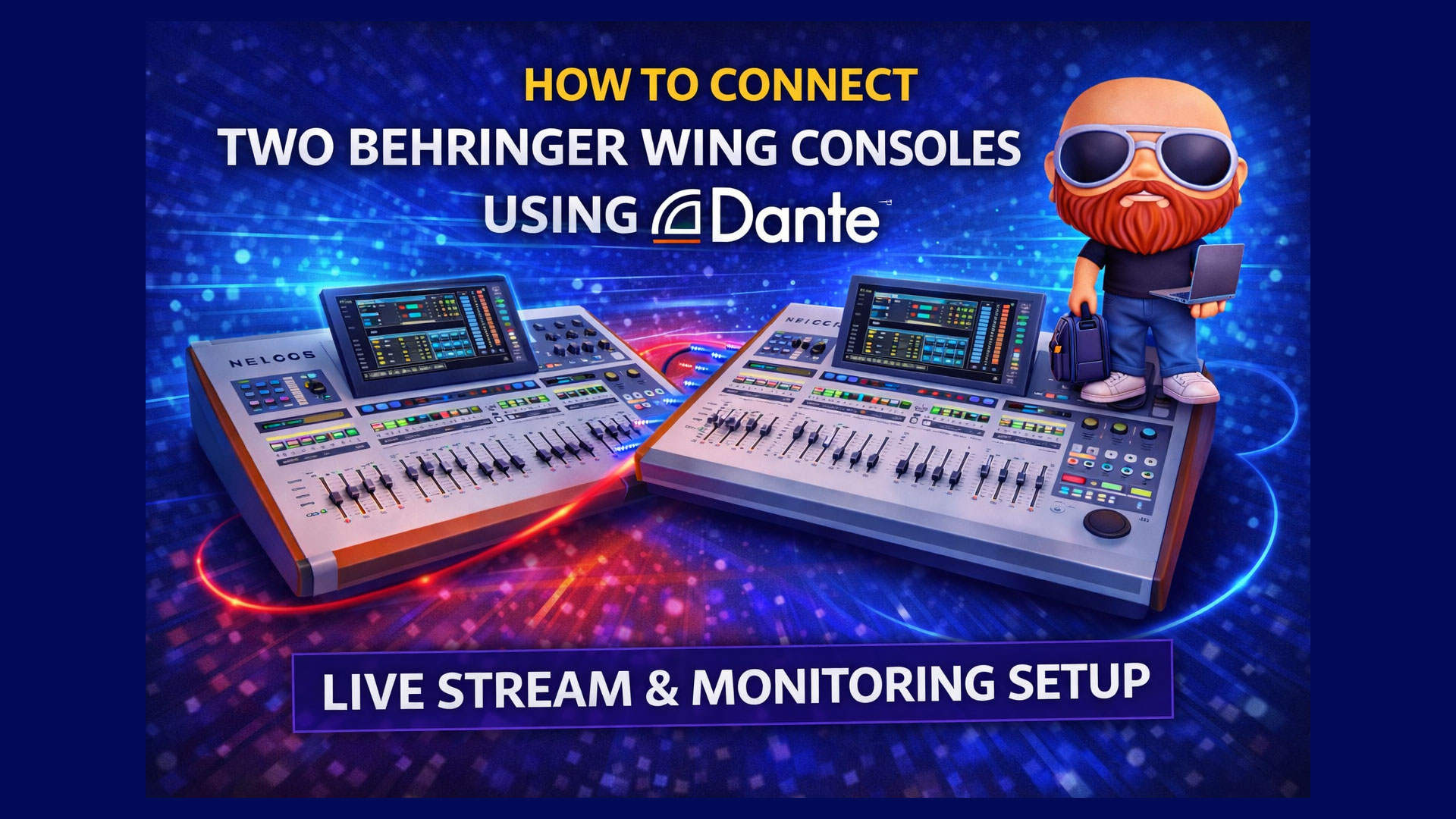
How to Connect TWO Behringer Wing Consoles Using Dante – Live Stream & Monitoring Setup
In modern church audio setups, flexibility is key. Whether you’re live streaming your service or setting up completely independent in-ear and house mixes, the need for scalable audio routing solutions is more essential than ever. Thanks to digital audio networking, what used to require bulky analog splitters and redundancy-heavy setups can now be done with simple routing logic over a Dante network.
In this guide, we’ll walk through how to connect two Behringer WING mixing consoles via Dante to transmit audio between them. We’ll explore when and why you might do this, how to get everything set up, what deficiencies you should be aware of, and some pro tips to avoid common pitfalls. Buckle in, because we’re diving deep.
Why Connect Two WINGs via Dante?
There are several practical use cases for connecting two Behringer WING consoles on the Dante network:
Live Streaming Audio Mix in a Separate Room
Your front-of-house (FoH) engineer mixes for the in-person crowd, and a second engineer dials in a dedicated live stream mix—in a controlled room, with isolated monitoring.Separate Monitor Mixing Station on Stage
One WING at FoH, another WING on stage for in-ear monitor (IEM) or wedge monitor mixing.
With digital networking like Dante, this configuration is possible with just Cat5e/6 cables and proper routing—no physical analog splits needed.
What You Need
To set this up, make sure you have:
- Two Behringer WING consoles
- Dante expansion cards (installed on both consoles)
- A basic Dante network using a gigabit switch
- A computer running Dante Controller + Dante Virtual Soundcard (optional but useful for routing and verification)
- At least one stage snake (e.g., Behringer S32) connected to each console via AES50
- Optional: Audio playback source such as a computer with Adobe Audition
Step-by-Step: Sending Audio from One WING to Another Using Dante
Let’s walk through capturing a signal on WING #1 and routing it to WING #2 via Dante.
Step 1: Connect Everything to the Dante Network
- Connect both WING Dante expansion cards to your Dante-enabled network switch using Ethernet cables.
- Make sure your computer is also connected to the same network. Install and run Dante Controller and Dante Virtual Soundcard if you want to monitor routing or send audio from your computer.
Step 2: Basic Signal Flow on WING #1 (Primary)
- Plug an audio source into a stage box connected to WING #1 (e.g., plug an XLR into AES50A Channel 1).
- On WING #1:
- Select a channel strip (e.g., Channel 1).
- Go to the Home screen > Source Routing.
- Choose “AES50A Channel 1” as the input source.
- You should now see signal registering on that channel.
- Label the channel for clarity (“Music”).
- Adjust the gain as needed (e.g., Gain = 30.5 dB).
Step 3: Dante Controller Routing
Open Dante Controller on your connected PC.
You should see 3 devices:
- Your computer (via Dante Virtual Soundcard)
- WING #1 (e.g., HLY_WING)
- WING #2 (e.g., WING_D261)
Route audio from WING #1 to WING #2:
- Click on the Routing tab.
- Use the grid to route channels. For example:
- WING #1 Ch 1 → WING #2 Ch 1
- WING #1 Ch 2 → WING #2 Ch 2
- Repeat as needed
- Simply click the desired channel cross-point in the matrix to establish a link.
Step 4: Configure Dante Output from WING #1
- On WING #1:
- Go to Routing > Outputs > Dante Out.
- Unlock the routing layer for editing.
- Route the input channel (e.g., AES50A Ch 1) to Dante Out Channel 1.
- This sends that audio signal into the Dante network.
- Repeat for any other channels you want to send.
Step 5: Receive Dante Input on WING #2
- On WING #2:
- Select a channel (e.g., Channel 1).
- Go to the Home screen > Routing.
- Set the input source to Dante Channel 1.
- Rename the channel (e.g., “Music Second”) for clarity.
- Signal should now appear on WING #2.
🎯 At this stage, you’re successfully sending audio from WING #1 to WING #2 over Dante.
Important Notes About Gain Control
- Only the console receiving the physical source (XLR input) has gain control.
- WING #2 (in this case) can mix, route, and EQ independently, but cannot control input gain.
- Example: If Gain on WING #1 is set to 30.5 dB and adjusted mid-show, it affects WING #2’s audio level.
- Best Practice: Set gain during sound check and leave it. Make a workflow to prevent accidental changes.
Full Independence with Shared Input
Once routing is complete, both WING consoles behave independently:
- Unique fader movements
- Independent mute/on/off
- Separate EQ, compression, effects
- Distinct output mapping:
- WING #1 → Main PA
- WING #2 → In-Ears / Livestream
Reversing the Signal Path: From WING #2 to WING #1
Here’s how to reverse the flow if your source is on WING #2:
Step-by-Step:
- Plug your audio source into the S32 linked to WING #2 (e.g., XLR into AES50A Ch 1).
- On WING #2:
- Patch AES50A Ch 1 to a channel strip.
- Adjust gain appropriately.
- Route AES50A Ch 1 to Dante Out Channel 1.
- In Dante Controller:
- Route WING #2 Ch 1 → WING #1 Ch 1.
- On WING #1:
- Patch Dante Ch 1 to your desired fader channel.
🎉 Now audio flows in the other direction. Useful for capturing inputs from multiple stage locations.
Bidirectional Setup
You can actively send and receive unique audio streams on both consoles simultaneously:
- Send Ch 1–5 from WING #1 to WING #2
- Send Ch 6–10 from WING #2 to WING #1
- Maintain separate input gain for channels where the mic physically plugs in
- Monitor performance using Dante Controller
Bonus: Tapping Into Dante From Other Devices
One of Dante’s greatest strengths is that it’s not limited to just your consoles:
- Record or playback from any Dante Virtual Soundcard-enabled computer
- Use Dante AVIO adapters to grab signals anywhere in the building
- Compatible with DSPs, interfaces, recorders, and more
Summary Best Practices
- Always verify Dante network stability & IP addressing first
- Set gain only on the console receiving the physical input
- Treat Dante Controller as your patch bay
- Label all inputs/outputs clearly on both consoles
- Route only what you need to minimize network complexity
Final Thoughts
Dante gives your worship audio network unmatched flexibility without introducing latency or complexity—when used correctly. Whether it’s splitting mixes, doing low-latency monitor routing, or capturing multitracks for post, connecting two WING consoles on Dante is an essential skill in any modern digital church setup.
Remember, the only thing these WINGs share is gain. Everything else—from faders to FX—lives on its own island. That’s powerful.