How to Accurately Measure Latency on the Behringer Wing Using External Processing
In live sound or studio environments, accurately understanding latency is crucial—especially when you’re using external processing like Waves plug-ins through third-party computers. If you’re routing signals out of the Behringer Wing sound console, processing them with external software, and routing them back in, you are introducing latency. The challenge is knowing exactly how much latency you’re dealing with and compensating for it properly.
This guide will walk you through how to use the internal tools of the Behringer Wing console to measure round-trip latency down to the sample. Whether you’re using USB, Dante, or other external audio I/O systems, this method will help you precisely calculate the delay introduced by your external processing system.
If you are looking for a measurement microphone setup to read back your pink noise for tuning your room or a master EQ, I use the following and have found it affordable:
Dayton Audio Measurement Microphone
iRig USB Microphone
Any iPad
Why Testing Latency Matters
When using real-time processing—especially in a live mixing environment where timing is everything—latency can ruin alignment between processed and unprocessed signals, causing phasing, comb filtering, or metallic-sounding artifacts. Commonly, FOH mixers use external processing for vocals, instruments, or buses. Knowing your system’s delay allows you to phase-align your signals and clean up your mix.
Tools Needed
- Behringer Wing Digital Console
- External computer (in this case, a Mac mini)
- Waves or other plug-in processing
- Connection path (USB or Dante)
- Pink noise oscillator source
- Monitoring system (headphones or studio monitors)
System Setup
In this case, a Mac Mini is used for processing audio with Waves plug-ins. The audio is sent from the Wing over USB, processed, and then returned via USB. This is the system we’re testing for latency.
Note: This method assumes you’re familiar with the workflow of routing I/O on the Behringer Wing.
Step-by-Step Instructions
1. Generate a Steady Test Tone
Use the internal oscillator on the Behringer Wing to generate pink noise.
Steps:
- Press
Oscillatoron the Wing - Select
Pink Noise - Assign it to Channel 1 via patching
This channel represents your original, unaffected signal.
2. Create the External Round-Trip Signal
You’ll route the pink noise out via USB, into your external computer, processed with plug-ins (like those from Waves), and then routed back to the Wing.
Steps:
- Go to
Routing > Outputs > USB Audio - Set one of the USB outputs (e.g., USB 1) to your oscillator (channel 1)
- On your external system, ensure you receive and process that signal
- Then route the processed signal back into the Wing as a USB input on Channel 2
Channel 2 is now your processed signal with added latency. Channel 1 is still the original.
3. Verify Signal Behavior
Solo or listen to each channel separately to hear the pink noise.
You’ll notice no major difference when soloed, but when both are heard together, you should hear a shift in tone—a slightly metallic or comb-filtered quality. This is due to timing discrepancies between the two signals.
4. Invert the Phase of One Signal
We’re going to exploit phase cancellation to measure how out-of-sync the signals are.
Steps:
- Go to Channel 1 (the unaffected signal)
- Press
Home, go to the 2nd tab (Phase / Polarity) - Invert the phase
Inverting one signal and not the other allows us to clearly measure cancellation.
5. Apply Delay to Align the Signals
The goal is to apply delay to the unaffected channel (Channel 1) until it cancels out the delayed, processed signal on Channel 2.
Steps:
- In Channel 1, navigate to the
Delaysection - Begin adding delay in sample increments (the Wing allows this)
- Listen as you increase the delay
Eventually, the two signals will cancel each other out entirely. When perfectly time-aligned and one is phase-inverted, the result is silence. When you reach this silence, you’ve found the exact latency introduced by your external processing chain.
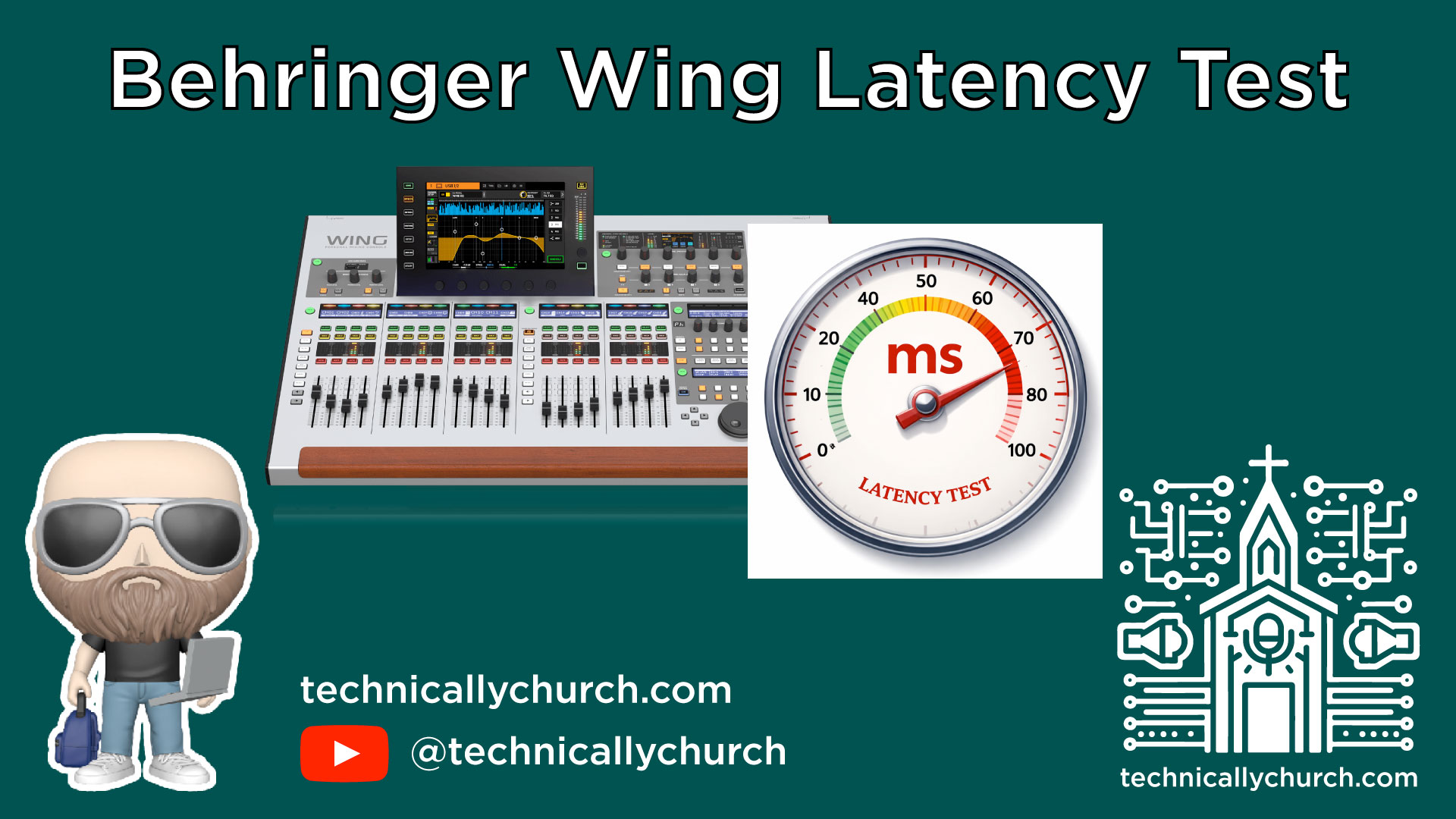
In the example provided, the measured delay was 479 samples, which equals 9.98 ms.
6. Confirm the Measurement
To verify:
- Mute either channel—signal returns
- Unmute both—signal cancels
This is the clearest and most accurate way to measure round-trip I/O latency between your mixer and external processing. Software DAWs (like Ableton Live) may estimate latency, but this method reveals the real-world behavior of your system.
Application of This Knowledge
Once you’ve measured your latency, you can:
- Delay other channels or groups to match the latency
- Adjust routing or processing strategy to minimize misalignment
- Compensate for latency in live streaming or multi-source audio mixing
Additional Considerations
Sample vs Millisecond Delay
- Behringer Wing allows delay adjustments in samples or milliseconds.
- To convert: 1 ms = 48 samples at 48kHz (Wing’s native sample rate).
- 479 samples = 9.98 ms at 48kHz
System Variables
Your latency might differ depending on:
- The exact CPU or OS of your external computer
- USB driver performance
- Plug-in DSP load
- DAW buffer settings
If your performance environment includes Dante or higher-latency routing, perform this same test with those routes in place to measure the total round-trip delay.
Conclusion
Measuring latency through external processing is a critical skill for audio engineers seeking phase coherence and optimal sound quality. The Behringer Wing provides simple but powerful tools to test latency internally without needing any third-party measurement software.
Once you master this method, you can diagnose, compensate, and optimize any signal path involving outboard gear or plugin processing. It ensures that what you hear is clean, punchy, and aligned—every time.