
Mastering Your Mix Remotely: A Step-by-Step Guide to Connecting the Behringer Wing with an iPad
Hey everyone, and thanks for joining me. As live sound engineers, especially in a dynamic church environment, flexibility is key. Being tied to one spot at the back of the room isn’t always the best way to craft the perfect mix for every person in the congregation. That’s where remote control comes in, and the Behringer Wing has some incredibly powerful and intuitive options.
Today, we’re diving into one of the most practical tools in your arsenal: connecting the Behringer Wing to an iPad for full remote control using the Wing Copilot application. The Wing is a powerful console, capable of connecting to a multitude of devices—up to 32 on the latest firmware (as of January 2026). This means you can have multiple iPads, iPhones, or other tablets all interacting with the console simultaneously.
We’ll walk through the entire process, from getting the console on your network to syncing the app and exploring its main features.
Understanding Your Remote Control Options: Copilot vs. Wing Q
Before we connect, it’s important to know that Behringer offers two primary remote control apps, and they serve very different purposes:
- Wing Copilot: This is the app for the sound engineer. It gives you comprehensive control over almost the entire console, as if you were standing right in front of it. You can adjust faders, EQs, dynamics, routing, effects, and much more. This is the tool for mixing from anywhere in the room.
- Wing Q: This app is designed specifically for the musicians on stage. It provides a simplified interface that allows them to control their own personal in-ear monitor mix. Crucially, it “sandboxes” them, limiting their control to their assigned monitor bus. This is a fantastic feature that empowers your worship team to adjust what they hear without any risk of them accidentally changing the main front-of-house mix.
For today’s tutorial, our focus is entirely on Wing Copilot.
Step 1: Getting Your Behringer Wing on the Network
Your iPad and your Wing need to be on the same computer network to communicate. This doesn’t necessarily mean they need internet access, but they do need to be connected to the same local network router.
The Physical Connection: First, you need to physically connect your console to your network router. On the back panel of the Wing, you will find a dedicated Ethernet port labeled “CONTROL”. Plug one end of an Ethernet cable into this port and the other end into a free LAN port on your network router or switch.
Navigate to Network Settings on the Wing:
- On the Wing’s main touchscreen, press the SETUP button.
- On the left-hand menu, tap the REMOTE tab.
- Focus on the NETWORK section on the right side of the screen.
Assigning an IP Address: For your Wing to be “seen” on the network, it needs a unique address, known as an IP address. You have two main options here: DHCP and Static.
- DHCP (Recommended for most users): DHCP stands for Dynamic Host Configuration Protocol. In this mode, the Wing will automatically request an IP address from your network’s router. This is the simplest and most common method. If you’re not a networking expert, this is the setting you want.
- Static (For advanced users): A static IP is an address that you manually assign and that never changes. This is useful in more complex or permanent installations where you want to guarantee the console always has the same address. To use this, you must have knowledge of your network’s IP scheme to avoid conflicts.
Confirm Your IP Address:
- Select DHCP mode. After a few moments, the Wing should receive an IP address from the router, which will be displayed on the screen. It will look something like
192.168.1.164. - Make a note of this address; you might need it later. Once you see an IP address populated, your Wing is successfully on the network.
- Select DHCP mode. After a few moments, the Wing should receive an IP address from the router, which will be displayed on the screen. It will look something like
Step 2: Connecting the Wing Copilot App on Your iPad
Now that the console is on the network, let’s get your iPad connected to it.
Confirm iPad Wi-Fi: First, ensure your iPad is connected to the exact same Wi-Fi network that your Behringer Wing is plugged into. They must be on the same network to see each other.
Download Wing Copilot:
- Open the App Store on your iPad.
- Search for “Behringer Wing Copilot.”
- Download and install the free application.
Launch and Connect:
- Open the Wing Copilot app. The first time you open it, it will immediately start searching your network for a Wing console.
- If you’ve connected before, it may auto-connect. If not, you’ll see the connection screen.
- Auto-Discovery: If your Wing is correctly on the network, it should appear in the list with its name and IP address (e.g., “WING 192.168.1.164”). Simply tap on it to connect.
- If it doesn’t appear: Tap the Rescan button to make the app search the network again.
- Manual Connection (Fallback): If it still doesn’t appear (which can happen on some complex networks), you can connect manually. Tap Disconnect if needed, then tap Manual. You will be prompted to enter the IP address of your Wing that you noted down in the previous section. Type it in and hit Confirm.
Verify the Connection:
- Once connected, the Wi-Fi-like symbol at the top of the app will turn green.
- You should see audio meters moving on your channels if there is sound coming into the console.
- The ultimate test: Move a fader on your iPad. Now, look over at the physical Behringer Wing console. You should see the corresponding motorized fader move in perfect sync. This is your confirmation that you have full, real-time control.
A Quick Tour of the Wing Copilot Interface
Now that you’re connected, you have a powerful mixing tool in your hands. Here’s a brief overview of what you can do.
Main Fader View: This is your primary screen. You can swipe through all your layers just as you would on the console: Input Channels, Buses, Mains, Matrixes, and DCAs. You have control over faders, mutes, solos, and panning for every channel. You can even create custom User Layers within the app that are independent of the ones on the console, allowing you to tailor a layout just for your iPad workflow.
Mute Groups & DCAs: The next tab allows for quick access to your Mute Group and DCA assignments.
Monitor & Talkback: These tabs give you full control over configuring and activating your monitor outputs and talkback microphones remotely.
Sends on Faders: This essential function allows you to quickly create monitor or effects mixes. Tap “Sends on Fader,” select the destination bus (e.g., a musician’s in-ears or a reverb effect), and your main faders will flip to control the send levels for that specific mix.
Channel View (The “Home” Screen): The second major icon at the bottom of the app takes you to a screen that mirrors the Wing’s main “Home” view for a selected channel. Here you can dive deep into EQ, compression, gates, inserts, and all other channel-specific parameters. Use the arrows at the top to cycle through channels.
Effects, Metering, and Routing: The app gives you dedicated sections to view and edit your effects rack, see a comprehensive overview of all your meters, and even re-patch your sources and outputs on the fly.
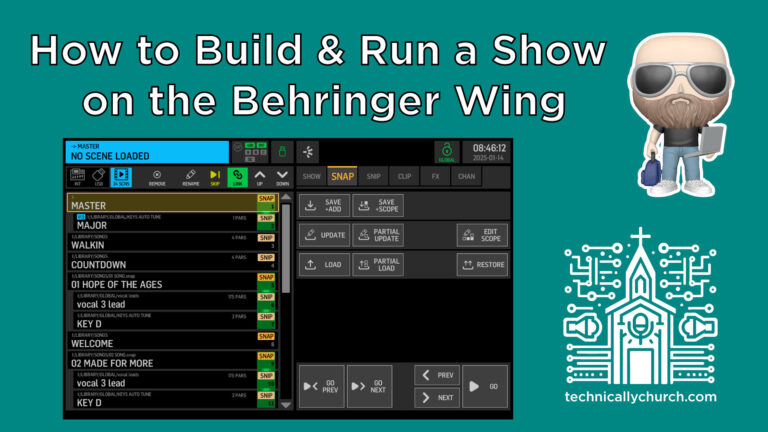
Snapshots & Shows: This is a game-changer. If you use snapshots to manage different parts of your service, you can now trigger them directly from the iPad. This allows you to fire cues while walking around the room or from a position other than the sound booth.
Practical Uses in a Worship Setting
So, why is this so useful?
- Walk the Room: You can finally hear what the mix sounds like in the front row, under the balcony, or in that notorious “dead spot” and make adjustments in real-time.
- Train Volunteers: A second operator can use the iPad to manage a specific task, like the live stream mix, while you handle the main front-of-house mix on the console. It’s a fantastic, low-pressure way to get new team members involved.
- Dedicated Mix Control: Use the iPad as a dedicated “station” for a secondary mix, like the broadcast feed, lobby feed, or recording mix, without ever having to leave your main faders on the console.
Connecting an iPad with Wing Copilot fundamentally changes your workflow, offering a level of freedom and control that will elevate your mixes. Hopefully, this guide has made the process clear and empowers you to give it a try.
Gear used in this tutorial
As an Amazon Associate I earn from qualifying purchases. Links above are affiliate links — they cost you nothing extra and help support the channel.