Setting Up Simple Task Reminders in Monday.com Using Automations
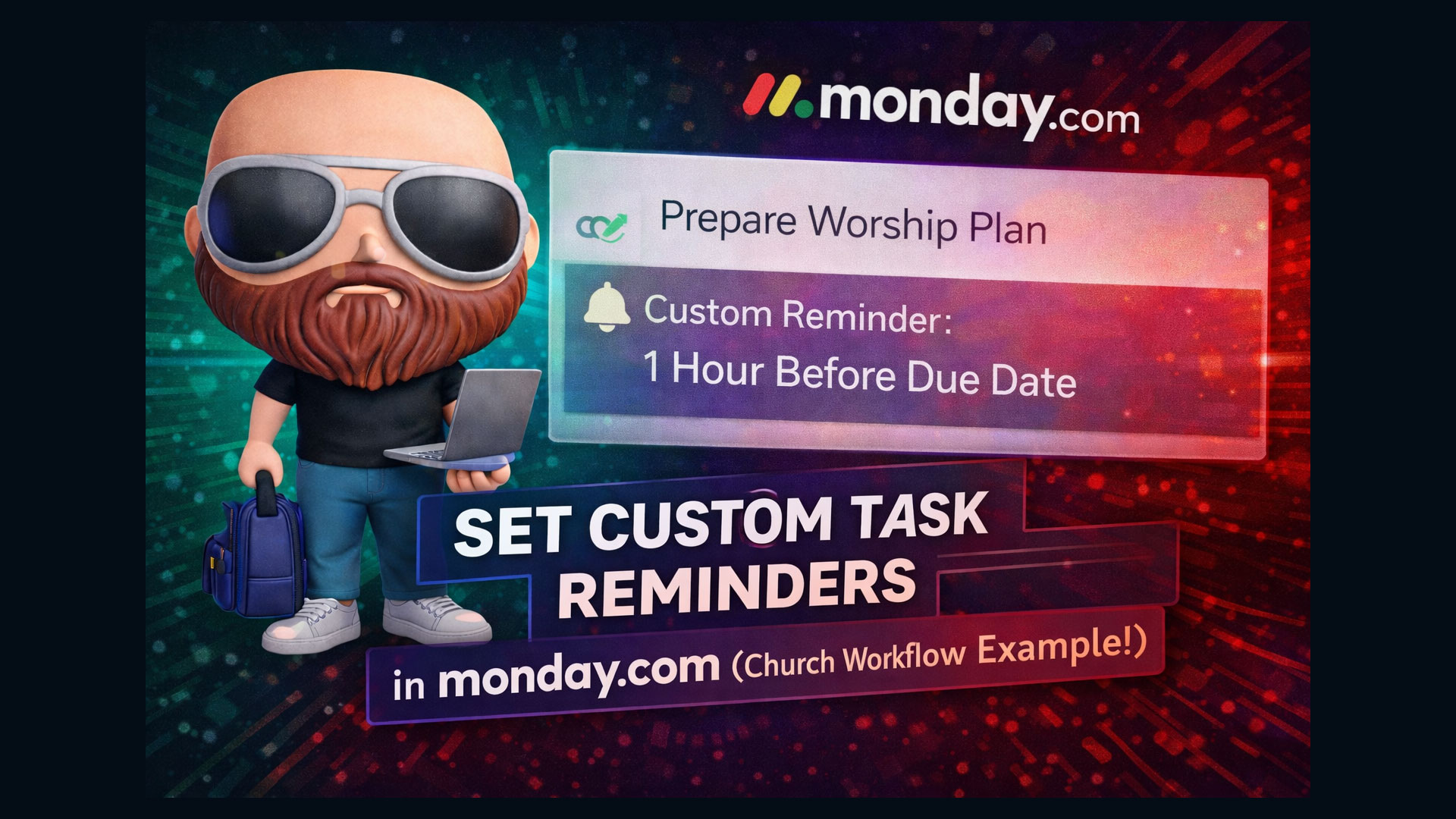
In collaborative environments—especially fast-paced and deadline-driven ones like church communications departments—task management is key. While Monday.com is an extraordinarily flexible project and task management tool, it doesn’t yet offer a traditional “reminders” function that operates independently of due dates or activity mentions. In this article, I’ll walk you through how to create an effective workaround using native automation tools in Monday.com. This method allows you to receive proactive reminders for upcoming tasks—before they’re due—customized to suit how your team works.
Let’s break it down step-by-step.
Why Monday.com Needs This Workaround
As of this writing, Monday.com supports:
- Notifications when someone mentions or tags you
- Alerts based on status changes or due dates
- Activity updates on specific boards or items
However, it lacks a native “reminder” system that allows a user to say, “Remind me two days before this task is due.” That’s where automation comes to the rescue.
Context: How Our Church Communications Team Uses Monday.com
In my role leading the communications department of a church, we regularly manage projects related to upcoming events. Each event has a main task, with several subtasks (or sub-items) related to design, web updates, printing, and so on. Each of these has its own assigned personnel, status, and due date.
To improve our workflow and avoid last-minute rushes, I created a simple but effective automation-based reminder system using Monday.com’s built-in tools.
Step-by-Step Guide to Creating Task Reminders with Automations
Step 1: Create a Custom Date Column
Navigate to the board where you manage your tasks or events.
Click the “+” icon to add a new column.
Choose the “Date” column type.
Name the column something clear like
"Reminder Date"or"Sub-item Reminder".✅ Pro Tip: This date is independent of your primary “due date” column. It’s meant for early notification—it won’t affect project deadlines.
Step 2: Assign a Reminder Date for Each Task
- For each subtask, manually set a date in the “Reminder Date” column.
- Example: If the task is due on the 14th, you could put the 12th as the reminder date.
Step 3: Create an Automation to Trigger the Reminder
Let’s set up an automation that triggers a notification to the task owner when the reminder date arrives.
Click on Automations at the top right of the board.
Click on “Create Custom Automation”.
Use the following logic:
- WHEN:
Date arrives(choose your new “Reminder Date” column). - AT: A specific time (e.g., 8 AM).
- THEN:
Notifyassigned person.
- WHEN:
Set up the notification:
- Choose “Notify” and then select “Assignee”.
- Compose a message like:
"🔔 Reminder: Work on task [Item Name] - [Sub-item Name] is due soon." - Use mapping options to include dynamic content like task names, sub-item names, and more.
Save your automation.
✅ Pro Tip: You can schedule the reminder for the exact day, or choose “1 day before,” “2 days before,” etc., depending on your preference.
Step 4: Understand Notification Delivery
Reminder notifications will be delivered according to your team members’ individual notification settings in Monday.com:
- In-App Notification
- Email Notification
- Mobile Push Notification (if using the Monday.com app)
Encourage your team to configure their notification settings properly to ensure they don’t miss any reminders.
Use Cases and Versatility
This system is extremely useful in collaborative project environments. Some potential uses:
- Church: Event planning, scheduling print and web updates.
- Businesses: Sales goal reminders, client follow-ups, launch preparation.
- Creative Teams: Deadlines for drafts, design review reminders.
- Education: Assignments and curriculum update reminders.
Best of all, it scales. You can implement this on main items or sub-items, and assign multiple stakeholders individual reminder dates for their responsibilities.
Final Thoughts
Even though Monday.com doesn’t yet offer native “reminders” like Google Calendar or other task apps, with a clever use of custom date columns and automation, you can build a highly effective reminder system tailored to your team’s workflow.
By integrating this method into your existing task management strategy, you can drive better accountability, reduce missed deadlines, and ensure a smoother planning process—especially in high-volume environments like churches and nonprofit organizations.